
 English
  Tiếng Việt
 Satellite phones are an incredibly useful tool, especially for those who frequently work in remote areas where regular mobile signals are unavailable. To optimize the usability of a satellite phone, connecting it with other devices such as computers, tablets, or supporting accessories is a crucial step that expands communication capabilities and enhances work efficiency. In this article, we will guide you through connecting your satellite phone with other devices in detail.
1. Connecting a Satellite Phone to a Computer via USB Cable
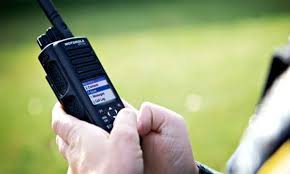
One of the simplest ways to connect a satellite phone to other devices is through a USB cable. This method is very useful when you need to transfer data between your satellite phone and computer or when you want to use the satellite phone as a modem to connect to the internet.
How to do it:
- Step 1: Connect the USB cable from the satellite phone to the computer.
- Step 2: Turn on the satellite phone and select "Data Transfer" mode if the phone prompts you to choose a connection mode.
- Step 3: On your computer, check if the satellite phone has been recognized. If the connection is successful, your computer will display a connection confirmation message.
- Step 4: You can now transfer files, photos, or other data between the satellite phone and the computer.
Note that some satellite phones require the installation of special software or drivers to be correctly recognized by the computer. Ensure you have installed all the necessary support software from the manufacturer.
2. Connecting a Satellite Phone to a Tablet
Connecting a satellite phone to a tablet will allow you to utilize a larger screen for making calls, sending messages, or checking emails when in areas without mobile network coverage. This connection method primarily applies to satellite phones that support Bluetooth or Wi-Fi connectivity.
How to connect via Bluetooth:
- Step 1: Activate Bluetooth on both the satellite phone and the tablet.
- Step 2: Go to the Bluetooth settings on both devices and search for the device to connect.
- Step 3: When the device is recognized, select connect and enter the PIN (if required).
- Step 4: After a successful connection, you can make calls or use applications on the tablet through the satellite phone connection.
How to connect via Wi-Fi:
Some satellite phones support Wi-Fi connection and can share internet connection with the tablet.
- Step 1: Activate "Wi-Fi Hotspot" mode on the satellite phone.
- Step 2: Access the Wi-Fi settings on the tablet and select the satellite phone's Wi-Fi network.
- Step 3: Enter the password if requested and connect.
- Step 4: After connecting, you can browse the web and use necessary applications on the tablet through the internet connection from the satellite phone.
3. Connect Satellite Phone With Camera and Other Imaging Devices
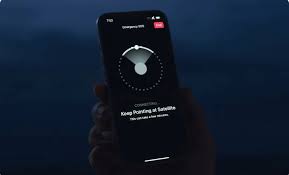
Satellite phones can connect to cameras or other imaging devices to transfer photos and videos during remote expeditions. Common connections for this purpose are usually via USB cable, Bluetooth, or memory card.
Connect via USB cable:
- Step 1: Connect the camera or imaging device to the satellite phone via USB cable.
- Step 2: Select "Data Transfer" mode on the satellite phone.
- Step 3: On the satellite phone, you can view and transfer photos or videos from the camera to the satellite phone.
Connect via Bluetooth:
- Step 1: Enable Bluetooth on the satellite phone and camera.
- Step 2: Scan for the camera's Bluetooth device and connect.
- Step 3: Transfer photos and videos from the camera to the satellite phone via Bluetooth.
4. Connect Satellite Phone With External Accessories
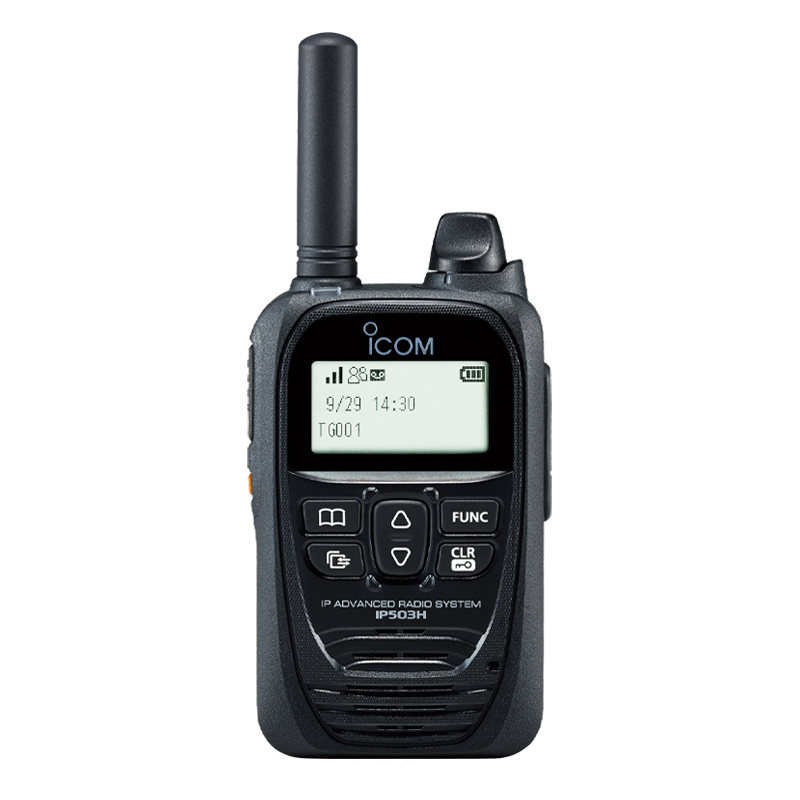
To optimize the use of the satellite phone in emergency situations, you can connect the device to external accessories such as Bluetooth headsets, walkie-talkies, or external speakers.
Connect with Bluetooth headset:
- Step 1: Turn on Bluetooth mode on the satellite phone and headset.
- Step 2: Find and select the headset connection in the Bluetooth device list.
- Step 3: After a successful connection, you can listen to calls or use the satellite phone without having to hold the device yourself.
Connect with a walkie-talkie or external speaker:
Some satellite phones can connect to a walkie-talkie or external speaker for clearer audio transmission in noisy environments.
- Step 1: Connect via Bluetooth or AUX cable depending on the supported device.
- Step 2: After connecting, you can transmit audio or use the walkie-talkie to communicate in areas without mobile signal.
5. Notes When Connecting Satellite Phones to Other Devices
When connecting a satellite phone to other devices, there are some important notes you need to remember to protect the device and ensure an effective connection:
- Check device compatibility: Before connecting, make sure your satellite phone is compatible with the devices you want to connect to.
- Use genuine accessories: To avoid device damage, always use genuine accessories and ensure the connections are correct.
- Protect the device during travel: If you have to travel in harsh conditions, use protective cases for your satellite phone and connected devices.
6. Conclusion
Connecting your satellite phone to other devices will help you make the most of its features in your work and life. From sharing internet connection with a tablet, transferring data with a camera, to connecting with accessories like headphones or walkie-talkies, these connections bring many benefits to users. Remember to follow the correct connection steps and ensure device compatibility to achieve the highest usage efficiency.
Originally posted 2025-01-22 02:28:15.