
 English
  Tiếng Việt
 Satellite phones are increasingly becoming important tools for communication in areas without conventional mobile signal. However, like any electronic device, satellite phones can also encounter some technical issues during use. Updating firmware and fixing common bugs can help the device operate more stably and improve its performance. In this article, we will provide you with a detailed guide on how to update firmware and fix common issues on satellite phones.
1. Why is Firmware Update Important?
Firmware is the software embedded within electronic devices that controls and manages the device's hardware. Updating firmware on a satellite phone is an important process that helps to:
- Improve performance: Firmware updates often come with performance improvements and system optimizations, helping the satellite phone run more smoothly.
- Fix bugs: New firmware can fix software bugs or signal connection issues that previous firmware versions could not resolve.
- Update new features: Manufacturers often add new features through firmware updates, allowing users to take full advantage of the device's capabilities.
- Security: Firmware updates help protect the satellite phone from security vulnerabilities, ensuring the safety of data and personal information.

2. How to Update Satellite Phone Firmware
Updating firmware on a satellite phone is not overly complicated, but you need to ensure you follow the correct procedure to avoid unintended problems. Here are the basic steps to update firmware on a satellite phone.
Step 1: Check Current Firmware Version
Before proceeding with the firmware update, you need to check which firmware version your device is currently using. To do this:
- Truy cập vào Settings trên điện thoại vệ tinh.
- Tìm mục Device Information orSoftware Version.
- Note the current version to compare with the latest version.
Step 2: Download Firmware Update
Once the current version is identified, you need to check if there is a new update. To download the update:
- Connect the satellite phone to Wi-Fi or mobile data (if supported).
- Truy cập vào Settings > Software Update orSoftware Update.
- Nếu có bản cập nhật mới, bạn sẽ nhận được thông báo. Hãy chọn Download and Install.
Step 3: Install the Update
After the update is downloaded, the satellite phone will prompt you to restart the device to complete the installation process. Make sure your phone has sufficient battery (or is connected to a power source) before proceeding with this step to avoid interruption.
- Connect the phone to a computer via USB cable if necessary.
- Wait until the installation process is complete. The phone will automatically restart again after a successful update.
Step 4: Post-Update Check
After successfully updating the firmware, you should re-check the device to ensure that the newly updated features are working correctly. Try functions such as making calls, sending messages, or checking signal connection to confirm that everything is in order.
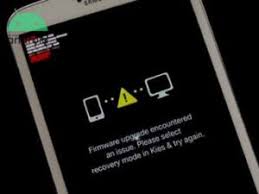
3. Troubleshooting Common Satellite Phone Issues
Even with firmware updates, satellite phones can sometimes encounter common issues. Here are frequently encountered problems and their solutions:
Signal Loss Error
One of the most common issues with satellite phones is signal loss or unstable connection. This could be due to software glitches or antenna problems.
Troubleshooting:
- Check the antenna: Ensure the satellite phone's antenna is not loose or broken. If the antenna is detachable, screw it back on tightly.
- Try moving to a different location: Satellite phones need open space to connect to satellites. Try moving outdoors, away from obstructions like buildings or trees.
- Restart the device: Sometimes restarting the device can help fix temporary connection issues.
Cannot Send or Receive Messages Error
If you cannot send or receive messages, your device may be experiencing issues with the satellite network or software.
Troubleshooting:
- Check connection mode: Đảm bảo rằng điện thoại của bạn đã được kết nối với mạng vệ tinh. Kiểm tra lại cài đặt kết nối vệ tinh trong phần Settings.
- Software Update: Ensure your satellite phone is running the latest software version. Updates often fix messaging sending/receiving errors.
- Restart the device: If you still cannot send or receive messages, try restarting your satellite phone to see if the error is resolved.
Fast Battery Drain Error
Some satellite phones may experience fast battery drain after a period of use. This could be related to software or hardware issues.
Troubleshooting:
- Check battery saving settings: Ensure that battery saving modes or background apps are not consuming too much power.
- Software Update: Sometimes firmware updates can improve battery performance. Make sure you are using the latest update.
- Replace the battery: If the battery still drains quickly after taking the above measures, the satellite phone's battery may be damaged and require replacement.
Slow Boot or Freezing Errors
If your satellite phone boots up slowly or freezes during use, this could be a sign of a software issue.
Troubleshooting:
- Clear Cache: Regularly clear the cache to free up space and improve device performance.
- Factory Reset: If the above methods do not work, you can try to factory reset your satellite phone. Remember to back up your data before doing so.
4. Conclusion
Updating firmware and troubleshooting errors on a satellite phone is an important part of maintaining the device's performance and stability. Firmware updates help improve features, security, and fix software bugs, while troubleshooting common errors will ensure you always have a well-functioning device when needed. Remember to perform regular device checks and maintenance to ensure your satellite phone always operates effectively in all situations.
Originally posted 2025-01-22 02:51:09.